

Google Search Console is free, takes ten minutes to set up, and shows you exactly which searches brought people to your website. Most business owners either never open it or open it once and feel lost. Here are the five reports worth your time, and what to do with each.
Google describes it plainly: Search Console is “a free service offered by Google” that “helps you monitor, maintain, and troubleshoot your site’s presence in Google Search results.” And one reassurance before you start: “You don’t have to sign up for Search Console to be included in Google Search results.” It isn’t a registration desk. It is a window into what is already happening.
1. Performance: the searches you already appear for
This is the report that changes how owners think about their website. It shows the real queries people typed, how often you appeared, and how often they clicked.
What to do with it: sort by impressions and look for searches where you appear often but nobody clicks. That is usually a title and description problem, not a ranking problem — you are in front of people with the wrong words. Then look for terms you rank for by accident. Those are often services you offer but barely mention on the site, and they are the cheapest pages to write next.
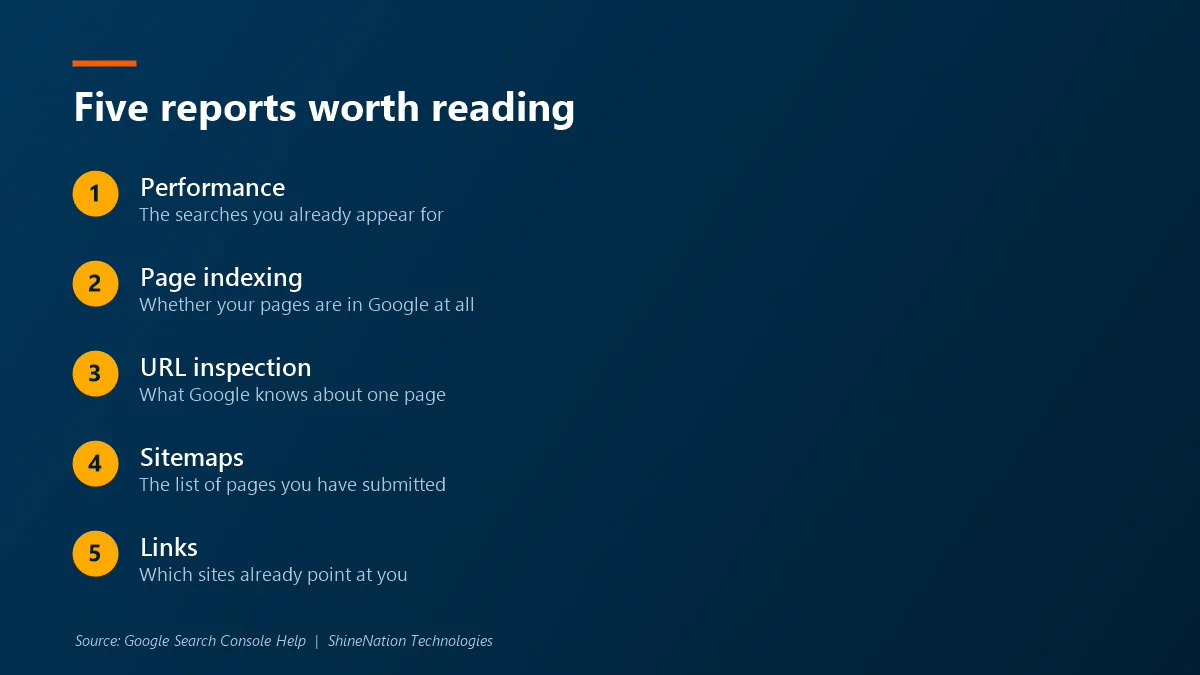
2. Page indexing: is your site actually in Google?
Google lists among the things Search Console does: “Confirm that Google can find and crawl your site” and “Fix indexing problems and request re-indexing of new or updated content.”
What to do with it: check that the number of indexed pages roughly matches the number of pages you expect. If important pages sit in the not-indexed list, read the reason given. “Discovered – currently not indexed” often means thin or duplicated content; “Excluded by noindex tag” means your site is telling Google to stay away, which happens surprisingly often after a redesign.
3. URL inspection: what Google knows about one page
Paste in a single address and Search Console tells you whether that page is indexed, when it was last crawled, and what it looked like to Google.
What to do with it: use it whenever you publish something new or make a significant change, and request indexing. Use it too when a page isn’t showing up — it usually names the reason in one line.
4. Sitemaps: what you have told Google exists
A sitemap is a list of your pages, submitted so Google has a map rather than a trail to follow.
What to do with it: submit it once, then check it occasionally for errors. If your sitemap lists pages that no longer exist, or misses half your site, that is worth fixing — it is usually a plugin setting.
5. Links: who points at you
Google says Search Console will “Show you which sites link to your website.”
What to do with it: look at who already links to you — suppliers, associations, local news, customers. Those relationships are usually the easiest place to earn more, and far more useful than anything a link-selling email offers you.
One more thing worth switching on
Google also says you can “Receive alerts when Google encounters indexing, spam, or other issues on your site.” Make sure those emails go to an address someone reads. A manual action or a hacked-site warning is the one email you cannot afford to miss.
How to use it without losing an afternoon
- Once a month, open Performance, set the range to the last three months, and read the queries.
- Write down three searches you appear for but don’t serve well, and improve or write those pages.
- Check Page indexing for anything important that has fallen out.
- Inspect and request indexing for each new page you publish.
- Ignore the rest until something tells you not to.
Rankings are not the useful number here. Enquiries are. Search Console tells you which words bring people to you — the rest of the job is making sure the page they land on does what our service page guide describes.
Want someone to read your Search Console with you?
Give us read-only access and we’ll tell you what the data actually says: which searches you already win, which you are close to, and which pages are holding you back.